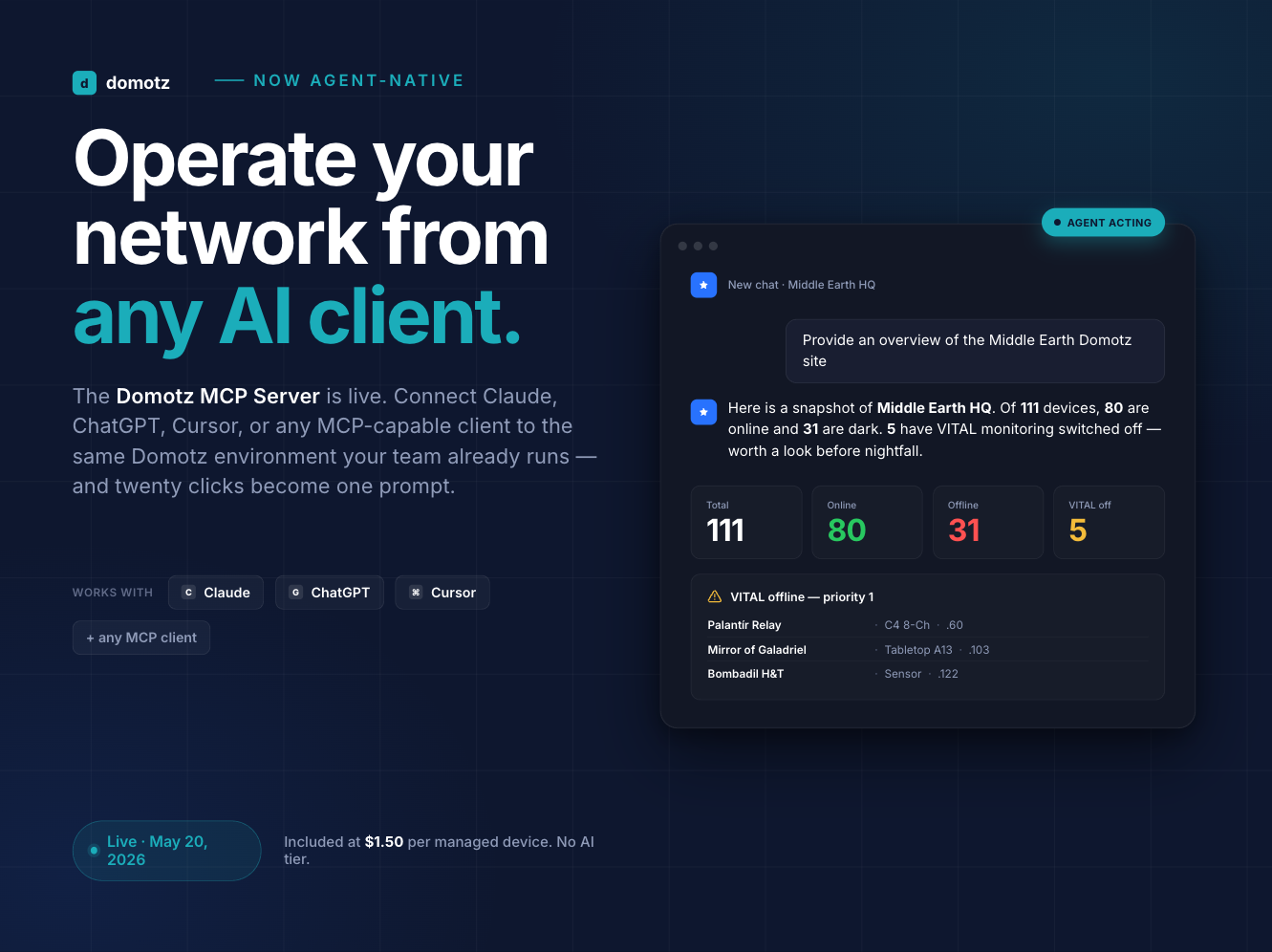






When we launched the Domotz MCP Server in May, the idea was simple: connect the AI assistant you already use (Claude, ChatGPT, Copilot Studio or any MCP-capable client) to Domotz, and run your networks in plain language. Four months later the server can do a great deal more, and the question we hear most has changed. It is no longer “can it do this?” but “how do I ask for it?”
This guide answers that, following the same path I take with customers. Get connected. Set up a project that knows your business. Let it learn your environment. Then choose prompts that fit where you are, whether you’re trialing, new to the MCP server, or ready to connect your whole toolset. Along the way we’ll point out what has been added since launch.
What’s new since launch
If you last looked at the MCP server in May, these are the headline additions, drawn from the Domotz release notes:
- An AI Agents page in the web app that brings together the connection steps for ChatGPT, Claude, Copilot Studio and other clients (July).
- A new “MCP Access” permission, so admins choose which roles can connect an AI client (July).
- Personal MCP API keys for clients that can’t do an interactive sign-in. A key is limited to the permissions of the user who created it (July, tightened in September).
- Undo for create and attach actions: anything an AI agent creates or attaches through MCP can be reversed (June).
- Richer metrics: metric requests now come back with a downsampled time series and trend analysis, not just a single reading (June).
- Alert rules you can edit, not only create: change severity, name, thresholds or contact channels (July).
- Maintenance windows: suppress alerts on a Collector for a set period (July).
- Device event logs, device tags (with colors), organization contacts and Collector renaming from your AI client (July–August).
- SNMP credentials set through a secure built-in form, so the secret never passes through the chat (August).
- Network settings: read and update a Collector’s routed networks, external hosts and IP scan rules; switch discovery and port scanners off and on; change default SNMP credentials and polling period (August–September).
- Device profiles, fully managed: create, read, update and delete them (September).
- Remote tunnels to a device, and per-outlet / per-PoE-port power control (September).
Step 1: Get connected
The server lives at https://mcp.domotz.com/mcp. There is nothing to install: it’s a remote endpoint, and you sign in with your Domotz account. Your AI client can only do what your Domotz role allows.
Before you start: an admin may need to grant your role the MCP Access permission.
- Claude.ai (Pro plan or higher): Customize → Connectors → + → Add custom connector. Name it Domotz, paste the server URL, click Add, then Connect and sign in. On Team and Enterprise plans, an organization owner sets up the connector first.
- ChatGPT: Domotz is a pre-approved app. Search for Domotz in Apps (or Settings → Apps), click Connect, sign in with Domotz and approve access. In a new chat, check that Domotz is selected under + → More.
- Microsoft Copilot Studio: in your agent, go to Tools → Add a tool → New → MCP. Enter the server URL and choose OAuth 2.0 with Dynamic discovery. The AI Agents page has a Copilot Studio tab with step-by-step instructions.
- Claude Code:
claude mcp add --transport http --scope user domotz https://mcp.domotz.com/mcp
Then run/mcpto finish signing in through your browser. - Anything else (Codex and other MCP-capable clients): create a key under Account → Domotz MCP API → Create MCP API Key, and send it as a Bearer token. Treat that key like a password; you can revoke it at any time.
First prompt to confirm it works:
List the Domotz organizations and Collectors I have access to, and tell me which Collectors are offline.
A setting worth two minutes: most clients let you choose, tool by tool, whether the AI asks before acting. We recommend Always allow for read-only tools, and ask first for anything that writes, changes or deletes. The setup guide warns that auto-allowing write and delete tools can let destructive actions run without confirmation.
Step 2: Start with a project, not a single chat
The biggest improvement to your results comes before the first network question. Instead of opening a blank chat, create a project in your AI client (Claude and ChatGPT both offer them). Give it standing instructions about your business and the job you want it to do. Every conversation in that project starts already knowing who you are, which sites matter, and how careful to be.
Here’s a starting point you can paste into your project’s instructions and adapt:
You are our network monitoring specialist, working through the Domotz MCP Server. We are [company], a [MSP / internal IT team / AV integrator] looking after [number] sites for [who we serve]. Our priorities are [uptime for X, security, client reporting, …].
How to work with us:
– Always tell me which organization, site or Collector you are looking at.
– Investigate and recommend first. Never change, resolve or delete anything until I confirm the exact plan.
– Present findings as a short summary first, then the detail in a table.
– Tell me when data is missing or volume is too low to judge, rather than guessing.
– Hold every recommendation to one standard: would a careful senior network engineer agree with it?
Then let it learn your environment before you ask it to do anything:
Discover and learn our environment. Go through every site and Collector I have access to: what’s there, how it’s connected, what’s been alerting, and what’s changed recently in the history. Summarize what you learned, and list anything that looks incomplete or misconfigured.
That one prompt gives every later question context to build on.
Step 3: Five prompting habits that do most of the work
The prompts at the end of this guide all follow these five habits. If a result disappoints, one of them is usually missing.
1. Name the scope. Say which organization, site, Collector or device you mean. “The Phoenix branch Collector” gets a precise answer; “my network” gets a vague one.
2. Say whether you want a look or a change. Start investigations with show, list, compare or summarize. When you want something changed, say so plainly and ask for the plan first:
Before changing anything, tell me exactly what you would do and on which devices, then wait for my OK.
3. Ask for the shape of the answer. A table, a ranked top five, a short summary for a client or a checklist: say which you want. It saves a round of reformatting.
4. Give it the “why”. “These alerts are false positives from last night’s firmware update” lets the assistant resolve the right ones and write a sensible note.
5. Close the loop. After a change, ask it to check its own work:
Now confirm each change took effect, and list anything that failed.
Step 4: Meet yourself where you are
What to ask first depends on how long you’ve been with Domotz. There’s no single right sequence; pick the one that matches you.
Just started, or trialing. You need an onboarding status: what’s been found, and what’s missing before monitoring is complete.
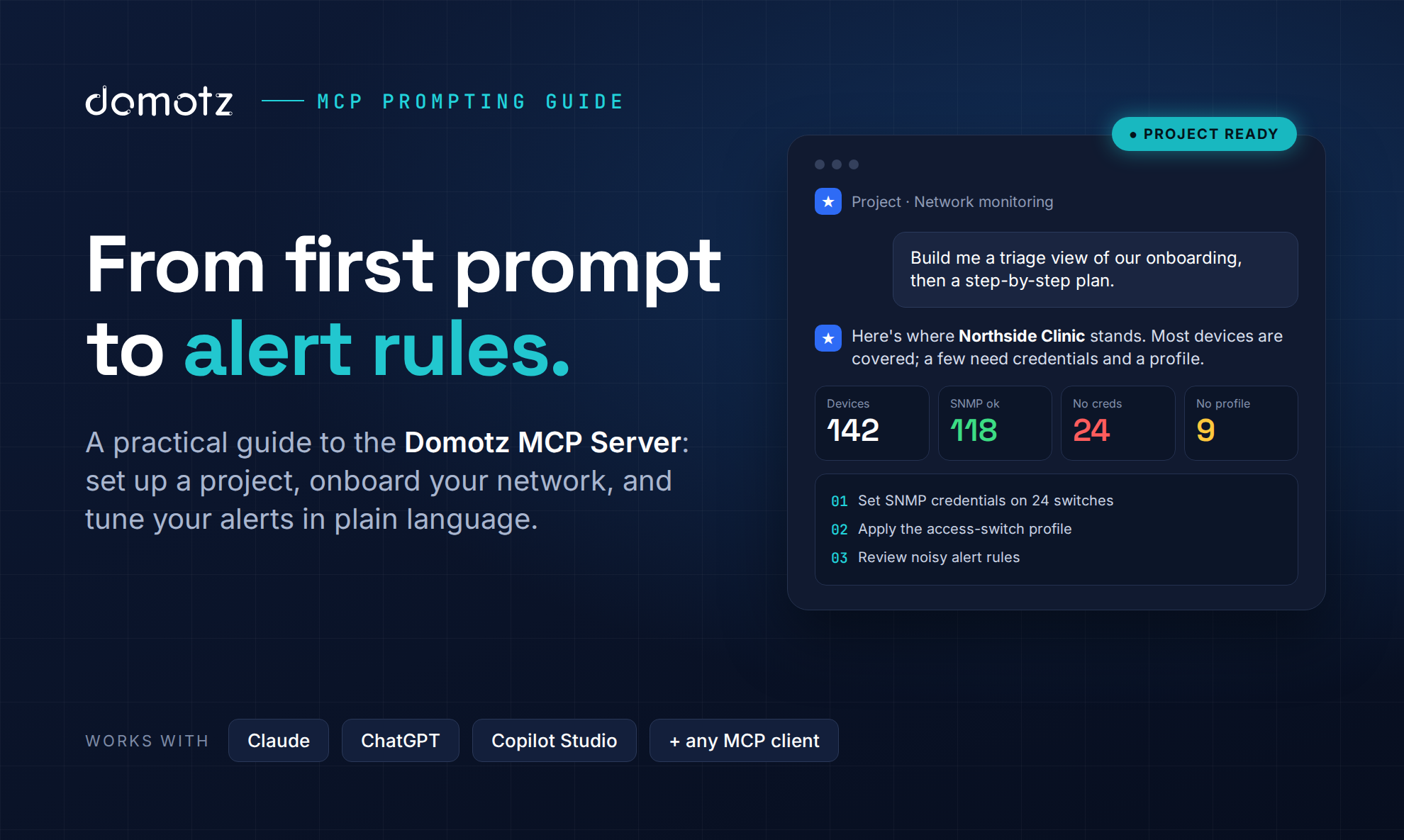
Build me a triage view of our onboarding. For each site, show how many devices were discovered, how many have working SNMP, SSH and other credentials, which have configuration backups, and which have no device profile. Then give me a step-by-step onboarding plan in priority order, using device profiles wherever they can do the work in bulk.
Been with Domotz a while, but new to the MCP server. Your monitoring is running; the value is in a fresh look at what it’s telling you.
Review the alerts and alert rules we have today. Which alerts fire most, which get ignored or resolved without action, and where are we missing coverage entirely? Recommend optimizations and alert adjustments, and show me each change before making it.
Fully onboarded and ready for more. Now the AI becomes part of how your team works day to day.
Here are three business cases we care about: [1], [2], [3]. For each one, design a repeatable workflow: which Domotz data it uses, the prompt to run, how often to run it, and what action should follow.
Whichever path you’re on, a useful habit is to write down three to five business cases that matter to you (a morning health check, a monthly client report, a pre-change backup check, and so on). They become the backbone of your project, and of the prompts you reuse every week.
Step 5: A prompt library by workflow
Copy these as they are and swap in your own site and device names.
Onboarding a new site
Map the network topology at [site]. Identify the gateway and any single points of failure.
For the switches missing SNMP, set the credentials. Open the secure form for me rather than asking me to paste them here.
Show me the device profiles available, recommend which one fits the access switches at [site], and apply it once I confirm.
Creating and tuning alerts
This is where plain language saves the most clicks.
Create a high-severity alert when round-trip latency on the [site] WAN exceeds 100 ms for 5 minutes, and send it to our on-call channel. Show me the rule before you save it.
List the alert rules on the [site] Collector and which devices each one is bound to.
The [rule name] alert is too noisy. Raise the threshold to [value] and change the severity to medium.
We’re patching the [site] core switch tonight from 10 PM to midnight. Suppress alerts on that Collector for that window.
Resolve all open alerts from the printer at [site] from the past 7 days. They’re false positives from a firmware update; add that as the resolution note.
Reports and status views (“dashboard” prompts)
The MCP server doesn’t build dashboards inside the Domotz web app. Your AI client, though, can turn live Domotz data into a status view on demand, and you can re-run the same prompt every morning.
Build me a morning status table for every site I manage: Collector online or offline, number of devices down, open alerts by severity, and anything that changed since yesterday.
Which five devices on the [site] Collector had the worst uptime this month? Include each device’s longest outage.
Plot inbound and outbound traffic on the WAN interface of the core router at [site] for the past 24 hours, and flag anything unusual in the trend.
Write a one-paragraph network health summary for [client] that I can paste into their monthly report. Keep it non-technical.
Configuration and change tracking
Pull the latest configuration backup from the [site] core switch and compare it with last Friday’s. Summarize what changed.
Show me the event log for [device] over the last 48 hours.
Search the audit log for changes made to [site] this week, and who made them.
Hands-on fixes
[device] at [site] is unresponsive. Check its status and recent events, then suggest whether a power cycle is appropriate. Don’t act yet.
Power-cycle PoE port [n] on [switch] at [site].
Open a remote connection to [device] so I can reach its web interface.
From onboarded to an ecosystem
The end goal is not a clever chat. It’s a working system. Once your credentials, profiles and alerts are in good shape, connect the rest of your tools. The MCP server can read and manage your ticketing and documentation integrations, so alerts turn into tickets and findings land where your team already works:
Show me which ticketing and documentation integrations we have connected, and which supported ones we haven’t set up yet.
For the three business cases in this project, build me an interactive status view I can open each morning, with links to anything that needs action.
Depending on your AI client, that view can be an interactive dashboard rather than a table. In Claude, for example, it can be built as an artifact inside your project. Re-run it daily and it becomes your team’s front door to the network.
Staying in control
A few things are worth knowing before you hand an assistant the keys:
- Your permissions follow you. The AI can only see and do what your Domotz role allows, and an API key is limited to the permissions of the user who created it.
- Every attempt is logged, including actions that were denied, not only the ones that succeeded.
- Create and attach actions can be undone. Deleting a device and resolving alerts cannot, so the assistant asks for explicit confirmation before a device removal. Keep “ask first” switched on for these tools.
- Secrets stay in Domotz. Credential tools report status only, and the SNMP form keeps the secret out of the chat.
Where to go next
- Setup guide: Domotz MCP Server Setup
- Full onboarding, including the AI Agents section: How to Get Started with Domotz
- Everything the server can do: domotz.com/mcp-server
- What’s changed, month by month: Domotz release notes