
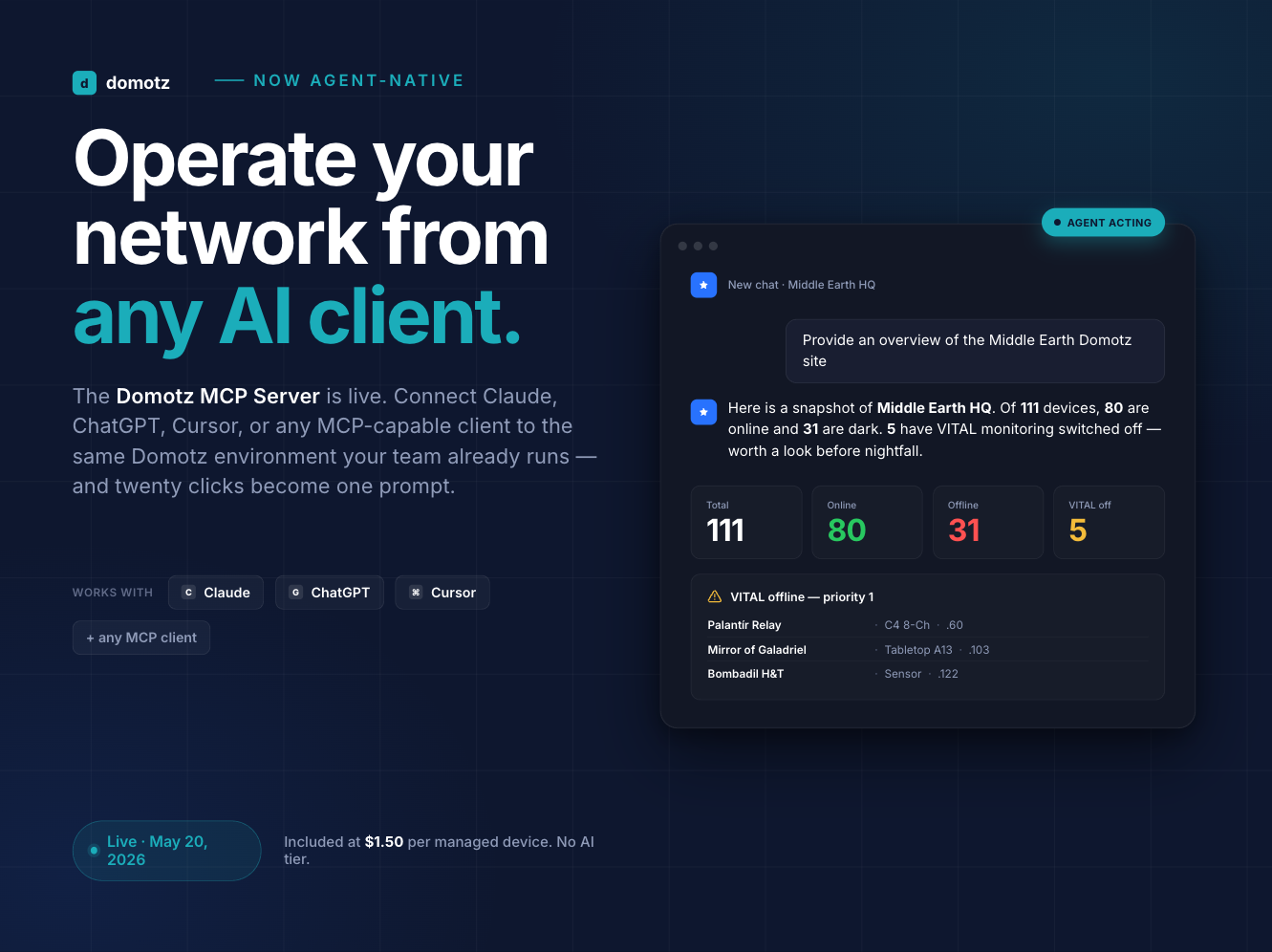





The Domotz MCP Server is live. IT teams, MSPs, and AV integrators can now operate their Domotz environment in natural language from Claude, ChatGPT, and any other MCP-capable AI client. This is agent-native network monitoring, available to every Domotz customer at no additional cost.
Network operations have always meant moving between dashboards, chasing devices across sites, and stitching together context the system already has. With the Domotz MCP Server, that work compresses into one prompt. You ask the AI client you already use what is wrong, what changed, or what to do next. It acts on your Domotz environment using the same tools your team uses by hand.
The MCP Server is included on every Domotz site at no extra cost. There is no new tier, no AI add-on price, and no per-seat fee. The change is in how you operate the platform, not in what it costs.
Table of contents
- What is the Domotz MCP Server?
- The four motions in plain English
- How to connect Domotz to Claude
- How to connect Domotz to ChatGPT
- What you can ask once you are connected
- What makes this different
- Pricing and access
- Frequently asked questions
- What is the Domotz MCP Server?
- Which AI clients can I connect Domotz to?
- Does the Domotz MCP Server cost extra?
- How do I connect Domotz to Claude?
- How do I connect Domotz to ChatGPT?
- What can Claude and ChatGPT do with my Domotz data?
- Can the MCP Server make changes to my network, or only read data?
- Is the Domotz MCP Server secure?
- Get started today
What is the Domotz MCP Server?
MCP stands for Model Context Protocol. It is an open standard introduced by Anthropic for connecting AI clients to external tools and data sources. Any client that speaks MCP, including Claude and ChatGPT, can plug into any MCP server. That open design is the foundation of what makes the Domotz MCP Server portable across the AI ecosystem.
The Domotz MCP Server is a remote HTTP endpoint at https://mcp.domotz.com/mcp. There is no local installation, no agent to deploy, and no proxy to configure. Once you connect your AI client to the server and authenticate with your Domotz account, the client gets access to roughly 50 tools across the four motions Domotz teams already use every day: Discover, Monitor, Manage, and Alert. The server is generally available to every Domotz customer as of today. There is no waitlist and no separate enrollment.
The four motions in plain English
The 50 tools exposed by the Domotz MCP Server group into four motions. This is the same framework Domotz uses to organize the product, and it is the framework you should think in when you write prompts.
Discover
Find every device, every site, with full context. Tools like search_organizations, search_collectors, search_devices, device_inventory, and network_topology let an AI client walk your entire estate, identify devices accurately using Layer-2 classification, and answer questions about what is on the network and how it is connected.
Monitor
Status, performance, and health for the devices that matter. Tools like device_performance, get_uptime, get_device_interfaces, get_interface_traffic, and get_device_metrics deliver SNMP readings, round-trip latency, packet loss, uptime ranges, interface counters, and anomaly-flagged trend analysis.
Manage
Act on the network. Apply device profiles, run scripts, compare configuration backups, restart devices, cycle PDU outlets, and update credentials. Tools like apply_device_profile, compare_config_backup, restart_device, cycle_outlet_power, and set_device_credential turn AI conversations into actual operational change.
Alert
Create alert rules, bind them to devices or specific variables, triage live incidents, and resolve known false positives in bulk. Tools like create_alert_rule, attach_alert_rule, search_alerts, and resolve_alert compress incident workflows that used to take ten or fifteen clicks into a single prompt.
How to connect Domotz to Claude
Claude.ai supports the Domotz MCP Server through its Integrations settings. The connection persists across sessions once added. You need a Claude.ai Pro plan or higher.
- Go to https://claude.ai and sign in.
- Click Customize from the left-hand menu.
- Navigate to Connectors, click the + icon, then click Add custom connector.
- Enter Name: Domotz and URL:
https://mcp.domotz.com/mcp. Click Add. - Click Connect, then sign in with your Domotz account when prompted.
- Configure permissions. We recommend setting read tools to Always allow, since they are non-destructive. For write and delete tools like
restart_device,cycle_outlet_power,apply_device_profile, andset_device_credential, leave the per-action prompt in place so Claude asks before each destructive operation.
To verify the connection, open a new chat or any Claude Project. The Domotz integration should appear as an available tool source. Ask Claude to list your Domotz organizations and you should see your sites come back in seconds.
For CLI users: Claude Code supports project-scoped connections through a single terminal command. Run claude mcp add --transport http --scope project domotz https://mcp.domotz.com/mcp in your working directory, then start Claude Code with claude. Type /mcp inside the session to confirm the server is connected. Full screenshots and the CLI walkthrough are in the Domotz MCP Server setup guide.
How to connect Domotz to ChatGPT
ChatGPT supports the Domotz MCP Server as a prebuilt app. There is no server URL to enter and no manual configuration. Availability depends on your ChatGPT plan.
- Go to https://chatgpt.com and sign in.
- Select Apps from the left-hand menu, or click your profile icon, then Settings, then Apps, then Explore apps.
- Search for Domotz and select the app.
- Click Connect, then sign in with your Domotz account to authenticate.
- Approve access to complete setup.
To verify the connection, start a new chat with the Domotz app enabled in your tools picker. Ask ChatGPT to summarize the current status of your network and you should see structured results pull through within a few seconds.
What you can ask once you are connected
The fastest way to understand what the MCP Server unlocks is to see real prompts and real responses. Below are eight examples, two per motion, that show how natural language compresses multi-step Domotz workflows into single prompts. Use these as templates and adapt to your environment.
Discover: see your whole estate at once
Prompt 1: multi-site overview
Give me a snapshot of every Domotz site I have access to. Flag any collector that is offline right now and any site with a security issue.
The AI client chains search_organizations, search_collectors, and collector_overview to pull live status across the estate. A typical response opens with a one-sentence summary (“You have access to 12 sites across 3 organizations; 2 collectors are offline and 1 site has 4 open security issues”), then a structured table listing each site’s collector status, device count, and any flagged issues.
Prompt 2: topology and single points of failure
Map the network topology at the Calgary HQ site. Identify the gateway and any single points of failure where one device outage would cut off downstream gear.
Claude calls network_topology with view=full on the Calgary collector, retrieves the device-to-device links and the upstream dependency map, and walks the graph to find devices with no redundant upstream path. The response names the inferred gateway, lists each single point of failure, and counts the number of downstream devices that would be cut off if each one failed. That is information an admin used to assemble manually from three different views.
Monitor: ask what is wrong, get a useful answer
Prompt 3: interface traffic with anomaly detection
Plot inbound and outbound traffic on the WAN interface of the core router at the Phoenix branch for the past 24 hours. Flag any anomalies in the trend.
The AI client calls get_device_interfaces to locate the WAN port, then get_interface_traffic with view=timeseries for the in/out octet series, then get_device_metrics with include_anomalies=true for the anomaly flagging. The response gives you the average and peak bps for in and out, the time of any anomaly point, and a one-sentence interpretation of what likely happened during the spike.
Prompt 4: worst uptime over the past month
Which five devices on the Phoenix collector had the worst uptime this past month, and what was the longest single outage for each?
Claude calls search_devices filtered to the Phoenix collector, then get_uptime for each, aggregates the data, and ranks the bottom five. The response gives device name, total uptime percent, the longest single downtime interval with start and end timestamps, and the device type for context (so a flaky access point looks different from a flaky firewall).
Manage: turn answers into action
Note on write actions: the prompts below trigger destructive or change-making operations. Claude will ask for confirmation before each one unless you have explicitly set the tool to Always allow. We recommend keeping the confirmation prompt for the write tools listed in the setup section.
Prompt 5: bulk apply a device profile
Apply the Standard Access Switch profile to all 8 access switches at the Phoenix office. Tell me which ones succeeded and which ones failed.
The AI client uses list_device_profiles to find the right profile, search_devices to identify the 8 access switches, and apply_device_profile to run the job in REPLACE mode. The response confirms the dispatched job, polls for completion, and lists per-device outcomes. Failed devices are returned with their device IDs so you can investigate without leaving the chat.
Prompt 6: configuration drift
Pull the latest configuration backup from the Calgary HQ core switch and diff it against last Friday’s snapshot. Summarize what changed.
Claude calls list_config_backup_history to find both snapshot timestamps, then compare_config_backup to generate a unified diff. The response gives a short narrative summary (“3 access lists added, the management VLAN was renumbered from 10 to 99, and two interface descriptions changed”), followed by the diff text itself for review. This is the kind of question that used to require opening two tabs and reading config line by line.
Alert: triage and respond in one place
Prompt 7: create an alert rule end to end
Create a high-severity alert when round-trip latency on the Calgary HQ WAN exceeds 100ms for 5 minutes. Notify the on-call Slack channel.
The AI client orchestrates four tools to complete this single request: list_communication_channels to find the on-call Slack channel ID, list_metric_functions to confirm the right comparison function for latency, create_alert_rule to build the rule, and bind_alert_rule_to_device to attach it to the WAN device. The response confirms the rule ID, the binding, the threshold, and the notification target. What used to be a multi-screen setup is now one prompt.
Prompt 8: bulk resolve known false positives
Resolve all open alerts from the printer at the Calgary HQ site for the past 7 days. They are known false positives during the printer firmware update. Add a note: “Resolved during firmware update, May 19.”
Claude calls search_alerts with the device ID and time window, surfaces every matching open alert for your review, and then resolve_alert in bulk with the note captured in the audit trail. Resolution is irreversible, so Claude confirms the list before resolving. Operational hygiene at the speed of conversation.
What makes this different
Most AI features in network monitoring are locked-in copilots. The vendor builds a chat box on top of their own product, charges a premium tier, and limits you to whatever questions they pre-packaged. If you change vendors, your AI workflow goes with the contract.
The Domotz MCP Server is built on the open Model Context Protocol standard. The same connection you use in Claude today works in ChatGPT, and in any future MCP-capable client. Domotz is not your AI client. Domotz is the network platform your AI client of choice connects to. That separation is what makes this portable across the AI ecosystem you actually want to use.
The second difference is honesty about scope. The MCP Server exposes the same 50 tools your team already uses inside Domotz. We did not curate a “safe” subset. If a Domotz admin can do something by hand, an AI client can do it through the MCP Server, with the permission controls Claude and ChatGPT provide for write and delete operations. You stay in the loop on destructive actions because the protocol respects per-tool consent at the client level.
The third difference is pricing. There is no AI tier. There is no per-seat MCP fee. There is no minimum device count tied to AI access. The MCP Server is included on every Domotz site at no extra cost. If you already pay for Domotz, you already have access.
Pricing and access
Domotz costs $35 per site per month, with unlimited devices and every feature included. There is a 14-day free trial with no credit card required. MSPs and integrators can bring the rate down to $17.50 per site with volume pricing on a 12-month term. Full details are on the Domotz pricing page.
The MCP Server is generally available to every Domotz customer. There is no separate enrollment and no AI tier. You can connect from Claude.ai (Pro plan or higher), Claude Code, ChatGPT (plan-dependent), or any other MCP-capable client. Discovery and identification remain free for unlimited devices on every plan.
Frequently asked questions
What is the Domotz MCP Server?
The Domotz MCP Server is a remote HTTP endpoint that lets AI clients like Claude and ChatGPT operate a Domotz environment through natural language. It exposes about 50 tools across discovery, monitoring, management, and alerting, the same tools the Domotz product surfaces in its native interface. The server is generally available to every Domotz customer and is included on every Domotz site at no additional cost.
Which AI clients can I connect Domotz to?
Any AI client that supports the Model Context Protocol can connect to the Domotz MCP Server. At launch, this includes Claude (web, desktop, and Claude Code CLI) and ChatGPT. As the MCP ecosystem grows and more AI clients adopt the standard, the Domotz MCP Server will work with them as well, with no changes required on the Domotz side.
Does the Domotz MCP Server cost extra?
No. The Domotz MCP Server is included on every Domotz site at no extra cost. There is no separate AI tier, no per-seat fee for MCP access, and no minimum device requirement. If you already pay for Domotz, you already have access to the MCP Server. There is no separate enrollment.
How do I connect Domotz to Claude?
In Claude.ai, click Customize from the left-hand menu, navigate to Connectors, click the + icon, then click Add custom connector. Enter the name Domotz and the URL https://mcp.domotz.com/mcp. Click Connect, then sign in with your Domotz account. The Pro plan or higher is required. For Claude Code, run claude mcp add --transport http --scope project domotz https://mcp.domotz.com/mcp in your working directory. Full step-by-step instructions are in the setup guide.
How do I connect Domotz to ChatGPT?
In ChatGPT, select Apps from the left-hand menu, or click your profile icon, then Settings, then Apps, then Explore apps. Search for Domotz, select the app, and click Connect. Sign in with your Domotz account when prompted, then approve access. The ChatGPT setup uses the prebuilt Domotz app, so you do not need to enter a server URL. Availability depends on your ChatGPT plan. Full step-by-step instructions are in the setup guide.
What can Claude and ChatGPT do with my Domotz data?
Through the MCP Server, AI clients can perform the same operations a Domotz admin performs in the native interface: discover and identify devices, retrieve status and performance metrics, map network topology, apply device profiles, compare configuration backups, restart devices, cycle PDU outlets, create and bind alert rules, and triage live incidents. The full tool list spans the four motions of Discover, Monitor, Manage, and Alert.
Can the MCP Server make changes to my network, or only read data?
Both. Read tools like search_devices, device_inventory, and get_uptime return information without changing anything. Write tools like apply_device_profile, restart_device, cycle_outlet_power, create_alert_rule, and resolve_alert make operational changes. Claude and ChatGPT both expose per-tool permission controls. We recommend keeping write and delete tools set to confirm-before-acting so destructive operations always go through your review.
Is the Domotz MCP Server secure?
The Domotz MCP Server uses OAuth-based authentication tied to your Domotz account. You authenticate through your AI client’s connector flow, the same way you would authorize any third-party app. The MCP Server inherits your existing Domotz RBAC and user management, so any role-based permissions you have already set in Domotz apply automatically to what the AI client can see and do. Your AI client also controls per-tool permissions, so destructive actions can require explicit confirmation. The server transports over HTTPS. For Domotz’s broader security posture, visit the Domotz Trust Center.
Get started today
If you are already a Domotz customer, you can connect right now. The connector takes about two minutes to set up in Claude or ChatGPT, and the MCP Server is included on every paid plan at no additional cost.
If you are new to Domotz, start a 14-day free trial. No credit card required. Discover and identify every device on your network for free, then choose which devices you want to monitor and manage. The MCP Server is included.
For the full technical walkthrough with screenshots, see the Domotz MCP Server setup guide.